

Provider Slug.
azure-openaiObiguard SDK Integration with Azure OpenAI
Obiguard provides a consistent API to interact with models from various providers. To integrate Azure OpenAI with Obiguard:First, add your Azure details to Obiguard’s Virtual Keys
Here’s a step-by-step guide:- Request access to Azure OpenAI here.
- Create a resource in the Azure portal here. (This will be your Resource Name)
- Deploy a model in Azure OpenAI Studio here. (This will be your Deployment Name)
- Select your
Foundation Modelfrom the dropdowon on the modal. - Now, on Azure OpenAI studio, go to any playground (chat or completions), click on a UI element called “View code”. Note down the API version & API key from here. (This will be your Azure API Version & Azure API Key)
If you do not want to add your Azure details to Obiguard, you can also directly pass them while instantiating the Obiguard client. More on that here.
1. Install the Obiguard SDK
Add the Obiguard SDK to your application to interact with Azure OpenAI’s API through Obiguard’s gateway.- Python SDK
2. Initialize Obiguard with the Virtual Key
Set up Obiguard with your virtual key as part of the initialization configuration. You can create a virtual key for Azure in the Obiguard UI.- Python SDK
3. Invoke Chat Completions with Azure OpenAI
Use the Obiguard instance to send requests to your Azure deployments. You can also override the virtual key directly in the API call if needed.- Python SDK
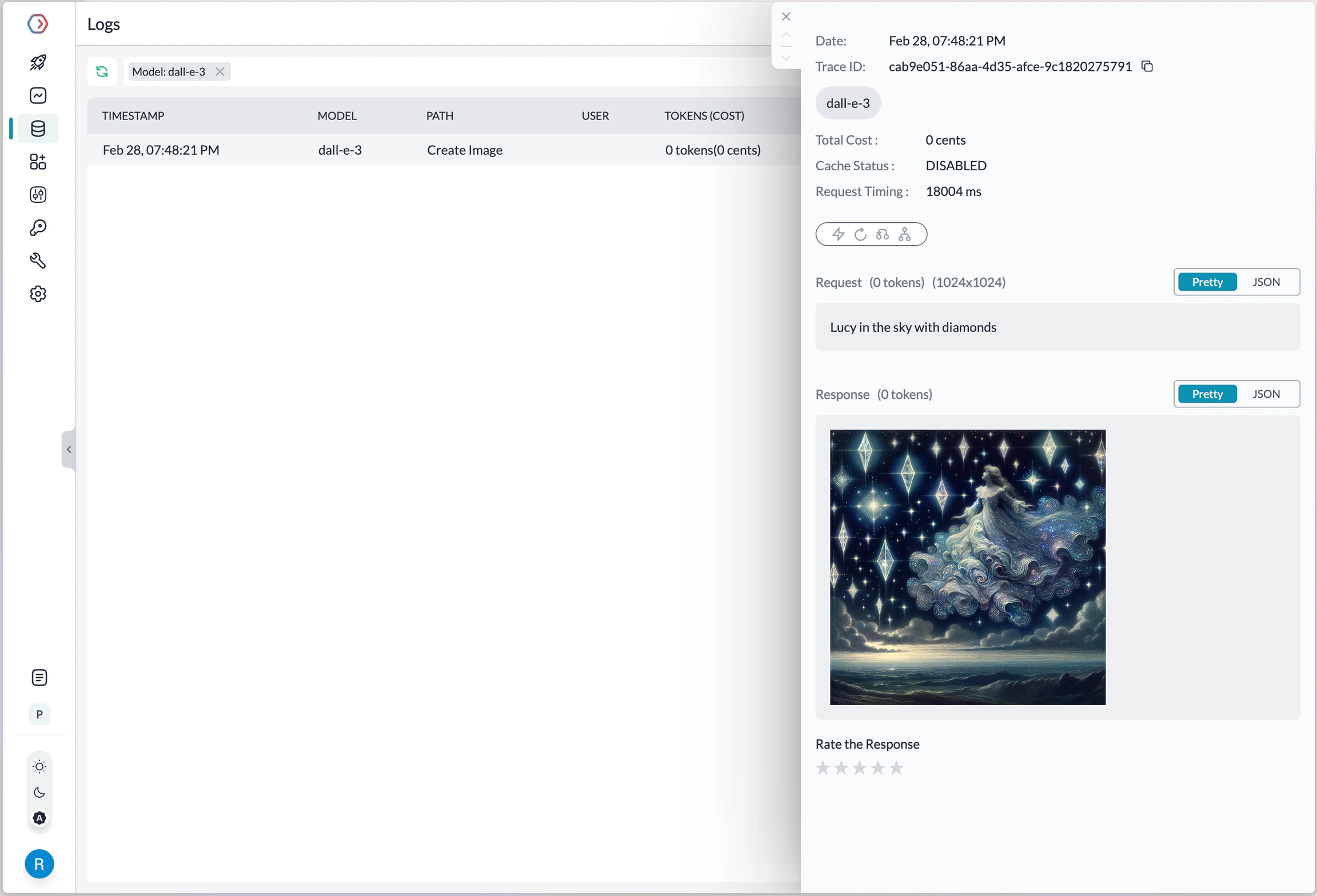
Image Generation
Obioguard supports multiple modalities for Azure OpenAI and you can make image generation requests through Obioguard’s AI Gateway the same way as making completion calls.- Obioguard Python SDK
Making Requests Without Virtual Keys
Here’s how you can pass your Azure OpenAI details and secrets directly without using the Virutal Keys feature.Key Mapping
In a typical Azure OpenAI request,Example
- Python SDK
- cURL
How to Pass JWT (JSON Web Tokens)
If you have configured fine-grained access for Azure OpenAI and need to useJSON web token (JWT) in the Authorization header instead of the regular API Key,
you can use the forwardHeaders parameter to do this.
- Python SDK